
What your subscribers see in OopsPlayer
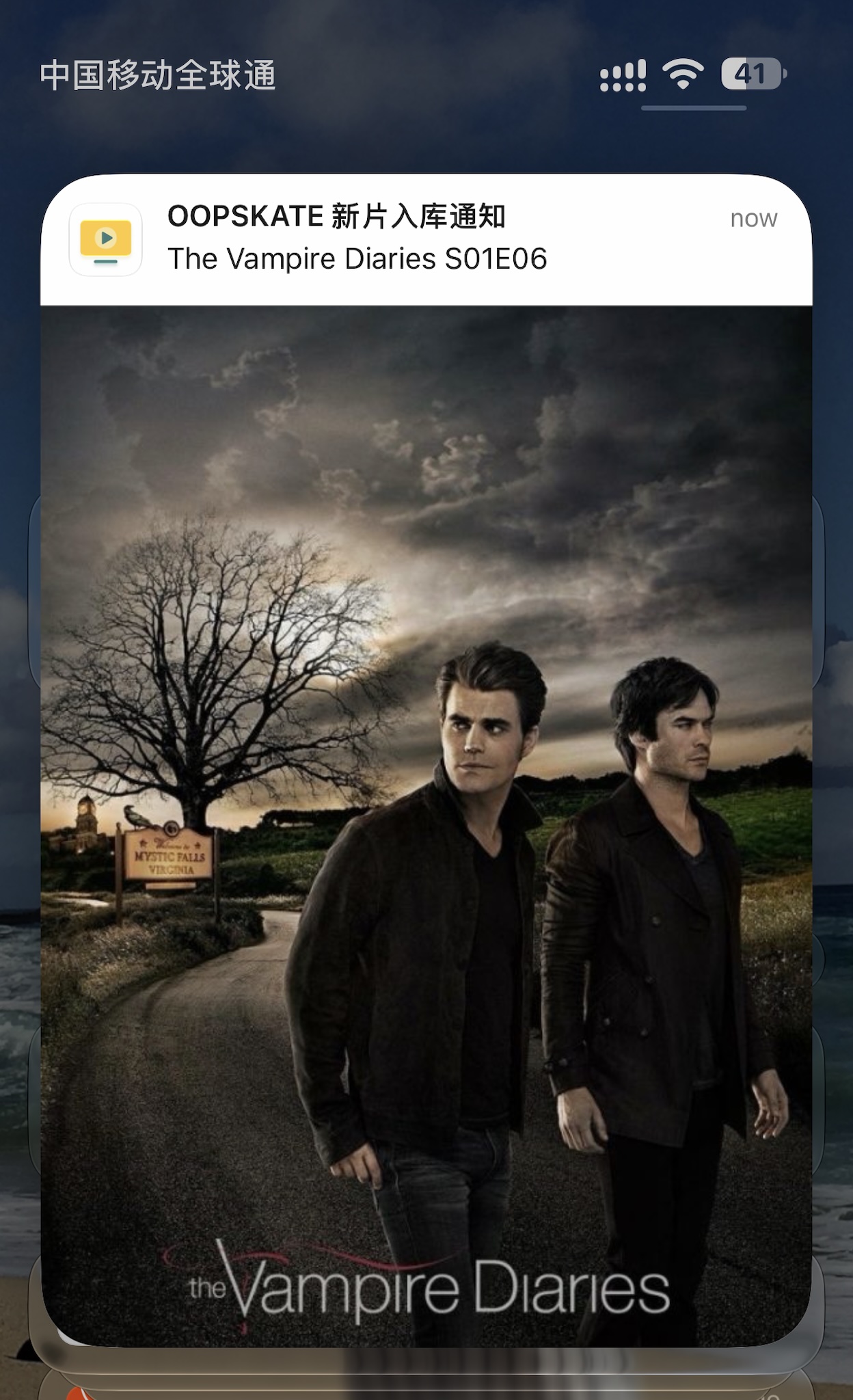
When you add a new episode of a series in a subscriber’s Favorites, they can receive an OopsPlayer notification with the episode title and artwork. Here is what that looks like on an iPhone.
Before you start
Have your Emby administrator login, the server address you give your subscribers, and a Telegram account ready. You will use @OopsMediaBot to create the webhook. The bot recommends Emby 4.8 or later.
Keep the webhook URL private. Paste it only into your own Emby notification settings; do not post it publicly or share screenshots that reveal it. The URL is hidden in the example below.
Create your private webhook with OopsMediaBot
The bot will generate a webhook URL for your server. You will paste it into Emby in the next step.
- Open @OopsMediaBot in Telegram and send
/start ento switch the bot to English. Then choose + Add Emby. You can also send/newto begin a new server setup. - Send the Emby server address your subscribers use, including its scheme and any port or base path, for example
https://emby.example.com. - Review the address and confirm that it belongs to a server you manage. If the bot cannot reach a private-network address from the public internet, follow its confirmation prompt only when the address is correct.
- The bot returns a unique webhook URL. Copy the entire URL for the next step.
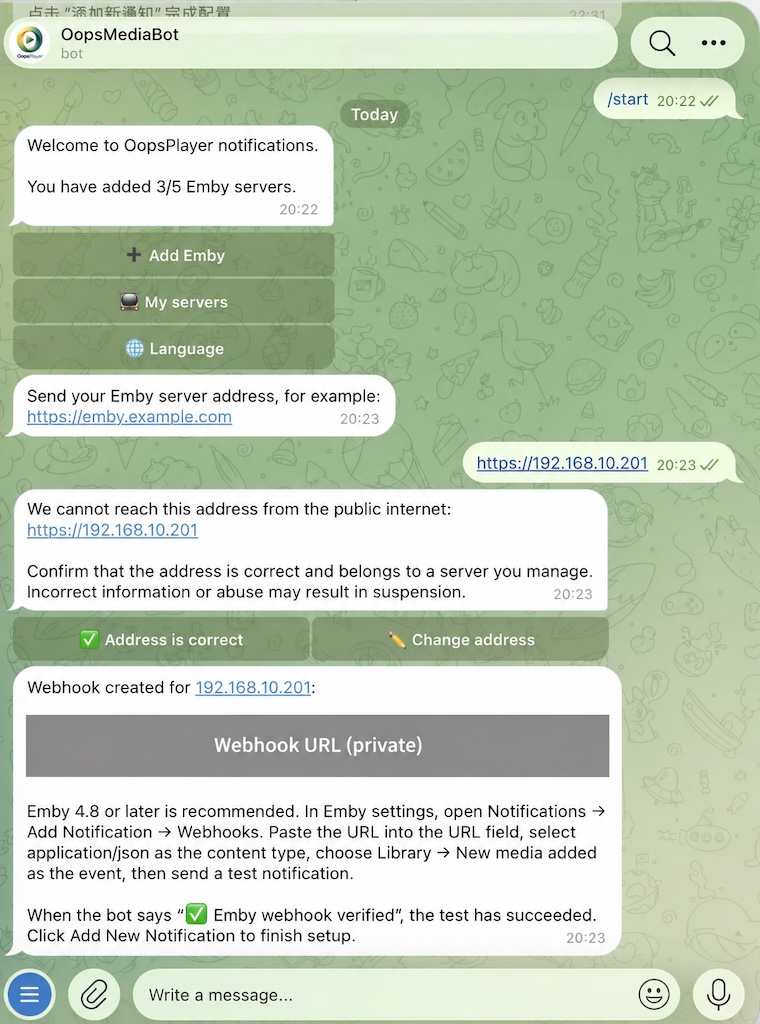
/start; use /start en as instructed above to select English.Tell Emby when to notify your subscribers
Configure Emby to send the webhook whenever new media is added to your library.
- Sign in to your Emby server as an administrator. Open Settings → Notifications → Add Notification → Webhooks.
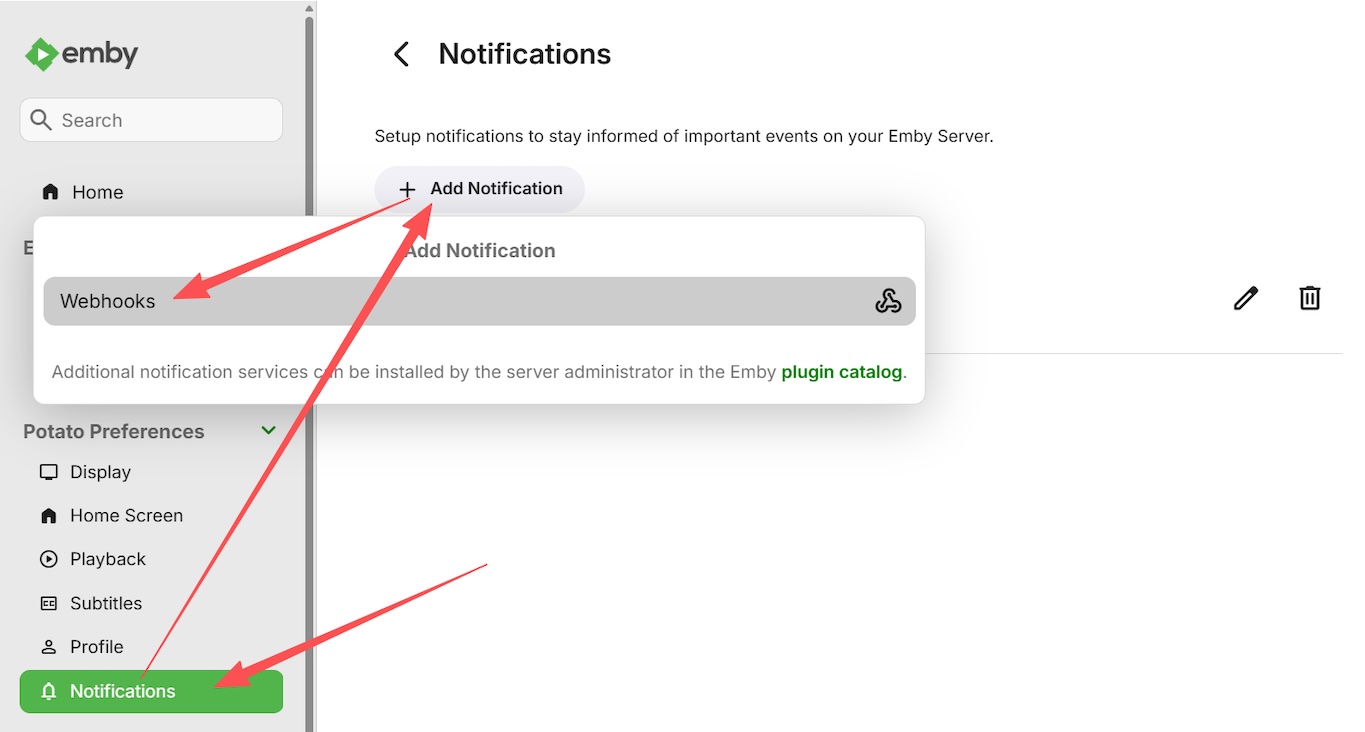
In Emby, open Notifications and choose Add Notification → Webhooks. The URL, content type, and Events fields appear in the webhook form. - Give the notification a recognizable name, such as
OopsPlayerNewMedia. Paste the full bot-generated URL into the URL field. - Set the request content type to
application/json. - Scroll to Events and select Library → New media added. Leave unrelated events off if this webhook is only for new arrivals.
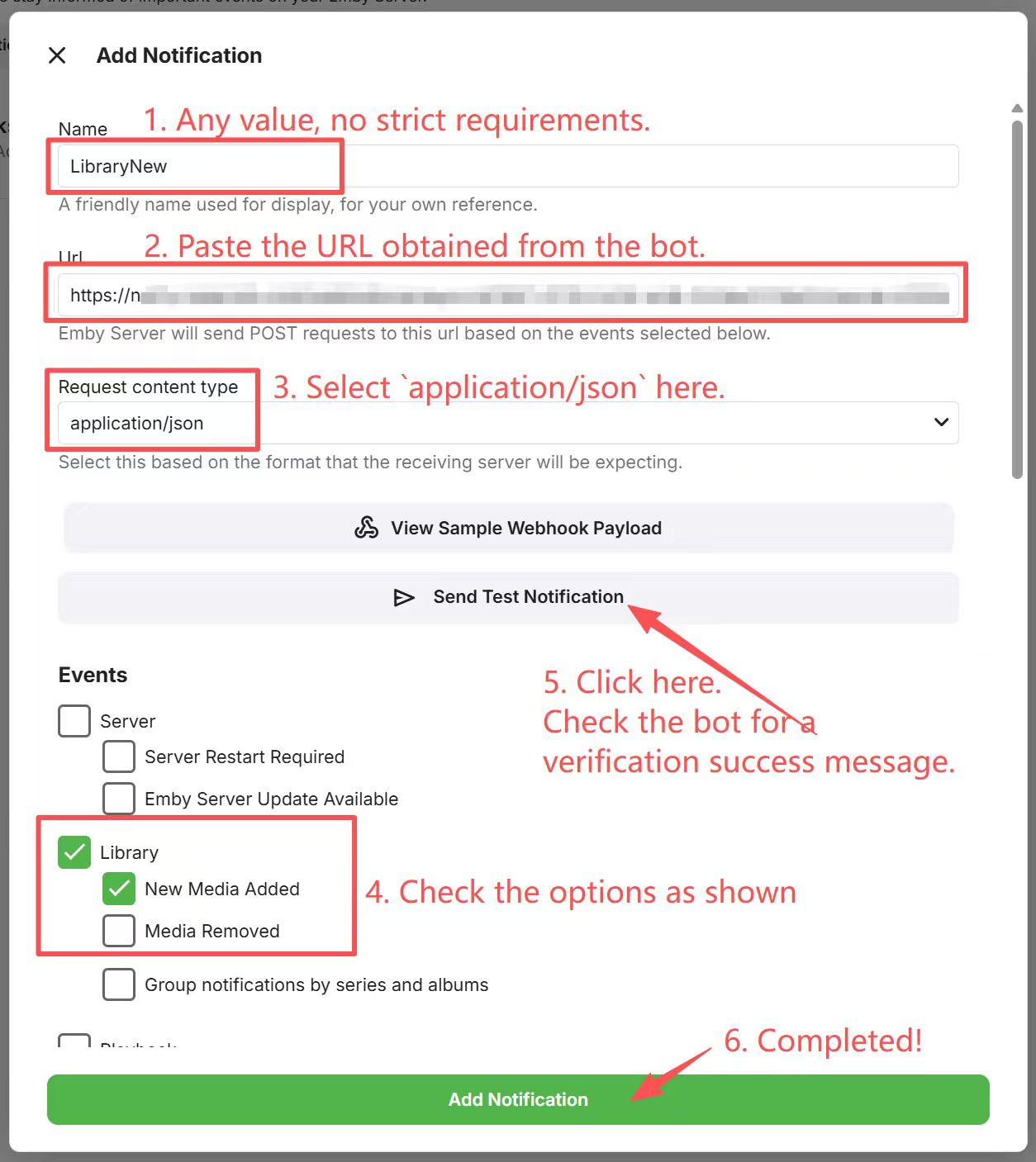
Check the URL and content type, enable Library → New Media Added, send a test, confirm the bot response, then select Add Notification.
Send a test, then save
- In the Emby webhook form, select Send test notification.
- Return to the Telegram chat. Wait for the bot to report ✅ Emby webhook verified. This confirms that its endpoint received the test.
- Return to Emby and select Add Notification at the bottom of the form to finish creating it. Do not stop after the test.
After setup, add a new episode of a series one of your subscribers has added to Favorites. Ask that subscriber to confirm the alert arrives. A successful test confirms that the webhook works; an actual episode addition checks the full path to OopsPlayer.
If your subscribers do not receive alerts
- No bot verification: confirm that the complete webhook URL was pasted into Emby; check
application/jsonand send another test. - The test passes, but a new episode generates no alert: verify that Library → New media added is selected and that you saved the notification after testing. Add a genuinely new episode to check the event.
- Only some subscribers receive alerts: ask each subscriber to add your server in OopsPlayer, enable New Media Notifications on their own device, and allow OopsPlayer notifications in iOS Settings.
- Series updates: confirm that your subscribers have added the shows they want to follow to Favorites in OopsPlayer.