What is Emby?
Emby grew out of the Media Browser project and adopted the Emby name in 2015. Its server organizes your videos, music, and photos, and a client such as OopsPlayer connects to that server to browse and play them. Emby itself does not supply a catalog of movies or TV shows. Read Emby's account of its history.
To host your own library, install Emby Server on a computer or NAS, add your media folders and a user account, then make the server reachable from the device running OopsPlayer. Follow Emby's official quick start guide for the setup steps.
Some third parties publicly advertise paid subscriptions for access to Emby servers. These offers are separate from Emby itself: its official service does not provide movie or TV subscriptions, and its terms describe personal, non-commercial use. Before using an outside server, check the provider's rights to its content and the applicable terms.
Open the Emby form
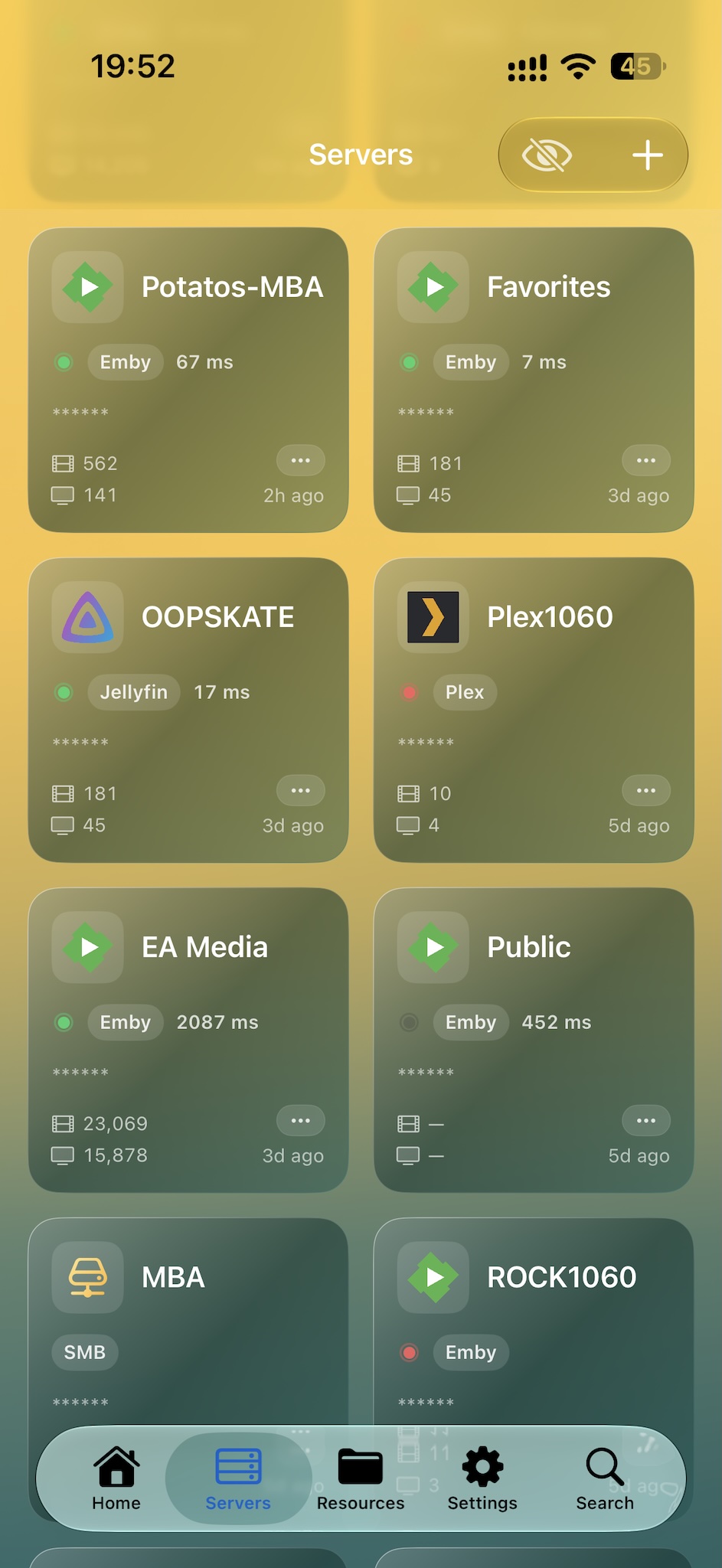
In OopsPlayer, open the Servers tab, tap + in the upper right, and choose Emby under Media Servers. This opens the Add Emby Server form.
Enter your server details
Use the connection details provided by your Emby server administrator.
| Field | What to enter |
|---|---|
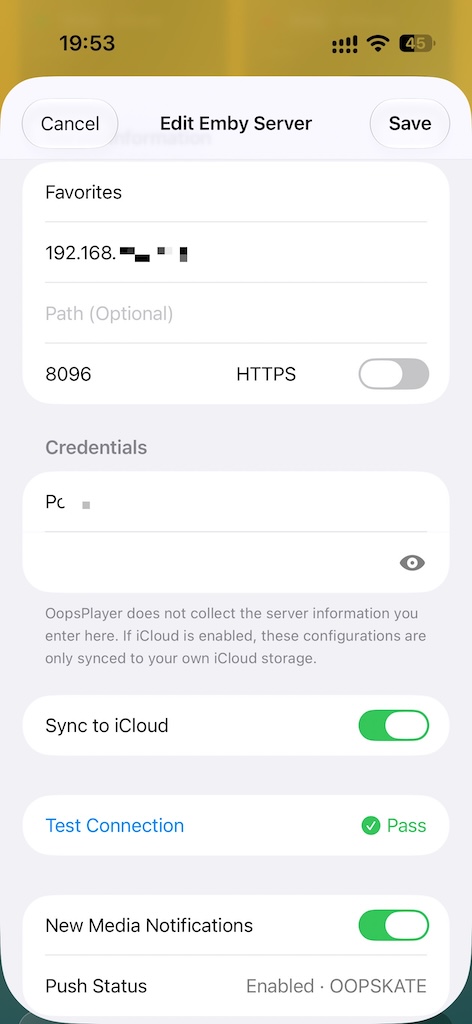
| Name (Optional) | A label for the Servers list, such as Favorites. If left blank, OopsPlayer uses the detected server name after a successful test, or the host. |
| Host | The server's domain or IP address, without http://, https://, a port, or a path. |
| Path (Optional) | Only the base path if your Emby service uses one. Otherwise leave it blank. |
| Port and HTTPS | Set the server's port and turn on HTTPS when its address uses https://. A new form starts with HTTP port 8096; switching HTTPS on changes that default port to 443. Use the port supplied by your server. |
| Username and Password | Your Emby account credentials. The eye icon beside Password shows or hides what you entered. |
Sync to iCloud is on by default. You can leave it on or change it before saving.
Test the connection and save
- Tap Test Connection. OopsPlayer connects to Emby and checks your login. A successful test shows Pass.
- If the test fails, check the host, port, HTTPS setting, path, username, and password, then test again.
- Tap Save in the upper right to keep the configuration.
Find your server in Servers
After saving, return to Servers. Your new Emby server appears as a card with its name and an Emby label. Tap the card to browse its media.