
Before you start
You need to provide the address of a compatible danmaku API service. OopsPlayer has fields for a server address and an optional token. The danmaku control will not appear in the player until a server is configured and enabled.
The iOS feature uses an API based on the danmu_api project. Get the full address and, if required, a token from your service. Whether a video finds matching comments depends on the service's catalog and the video's metadata.
Configure the danmaku API
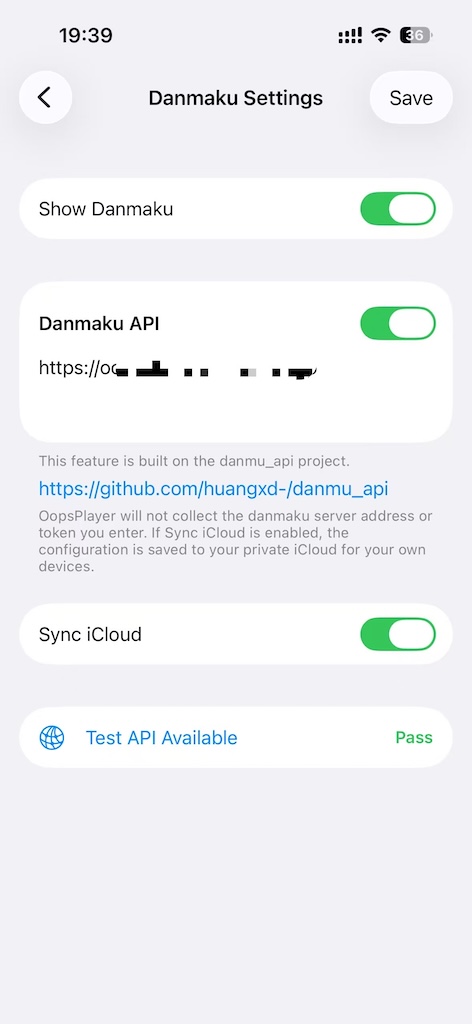
- In OopsPlayer, open Settings → Danmaku Settings.
- Enter the Server Address under Danmaku API. Add a Token (Optional) if your service requires one, and leave the API enabled.
- Tap Test API Available to check the connection. When the test passes, tap Save in the upper right.
- Turn on Show Danmaku if you want OopsPlayer to try loading comments automatically for each new video. This setting controls the default behavior for new videos.
Sync iCloud syncs the server configuration across your own devices. It is on by default and can be turned off. After changing the address, token, or enabled state, tap Save again.
Play with danmaku
While playing a regular video, open the player's Settings panel. Under Danmaku, choose On or Off. If Show Danmaku is enabled in the app settings, each new video triggers an automatic loading attempt. Turning danmaku off for the current video prevents another automatic attempt for that video.
After you turn it on, the panel shows matching, cache checking, and download status. Once comments load, it shows the number loaded and the matched title. Download progress appears while comments are fetched. Comments follow the video's playback time, including pauses and seeks.
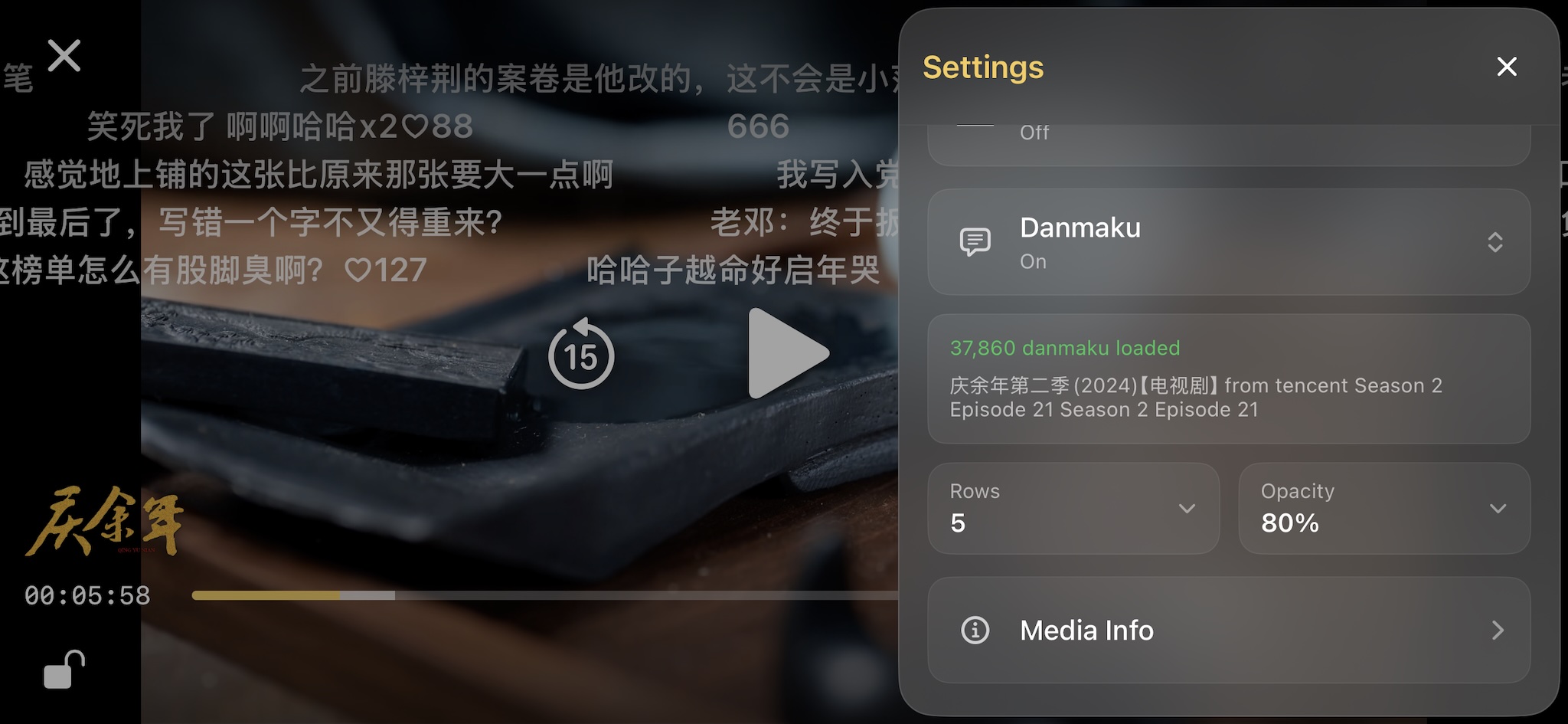
The player shows the danmaku control only when a server has been saved and enabled and the current playback is not IPTV. The first load may take time while the service searches and downloads comments.
Adjust appearance
After danmaku is on and comments have loaded, use the player's Settings panel to adjust:
| Setting | Choices | Effect |
|---|---|---|
| Rows | 1–5; default 5 | Limits how many rows can display scrolling comments. |
| Opacity | 40%, 60%, 80%, 100%; default 80% | Changes how transparent the comment text appears. |
These controls become available after comments load. The current player panel has no separate controls for font size, speed, or color.
Manage downloaded comments
Successfully downloaded comments are saved on your device. When you play the same video again, OopsPlayer checks remembered cached comments first. A matching episode may also reuse its existing cache.
Go to Settings → Cache Management → Danmaku Cache to review cached items, storage use, and save dates. Tap an item to delete it, or choose Clear All to delete all cached danmaku files. If you need those comments again later, OopsPlayer will query or download them from the service.
The Danmaku Cache section appears only when a danmaku server is configured and enabled.
Troubleshooting
I cannot find Danmaku in the player
Check that the server address is saved and the API is enabled under Settings → Danmaku Settings. The control is not shown during IPTV playback.
The API test fails or the player says no server is configured
Check the server address, your network connection, and any token required by the service. Then test and save again. The address should include a scheme and host, such as https://example.com.
No comments were found, or matching fails
The service may not have comments for the video, or the title, season, or episode information may be insufficient to find them. Check the video's title and file name, then turn danmaku off and on in the player to retry.